

The QuantStudio 6 Pro is an instrument for Real-Time PCR or Quantitative PCR (qPCR) — the process of detecting and quantifying polymerase chain reaction (PCR) amplification as it is happening. A qPCR instrument is a specialized type of thermal cycler that is able to excite and detect fluorescence.
Where Is This Instrument?
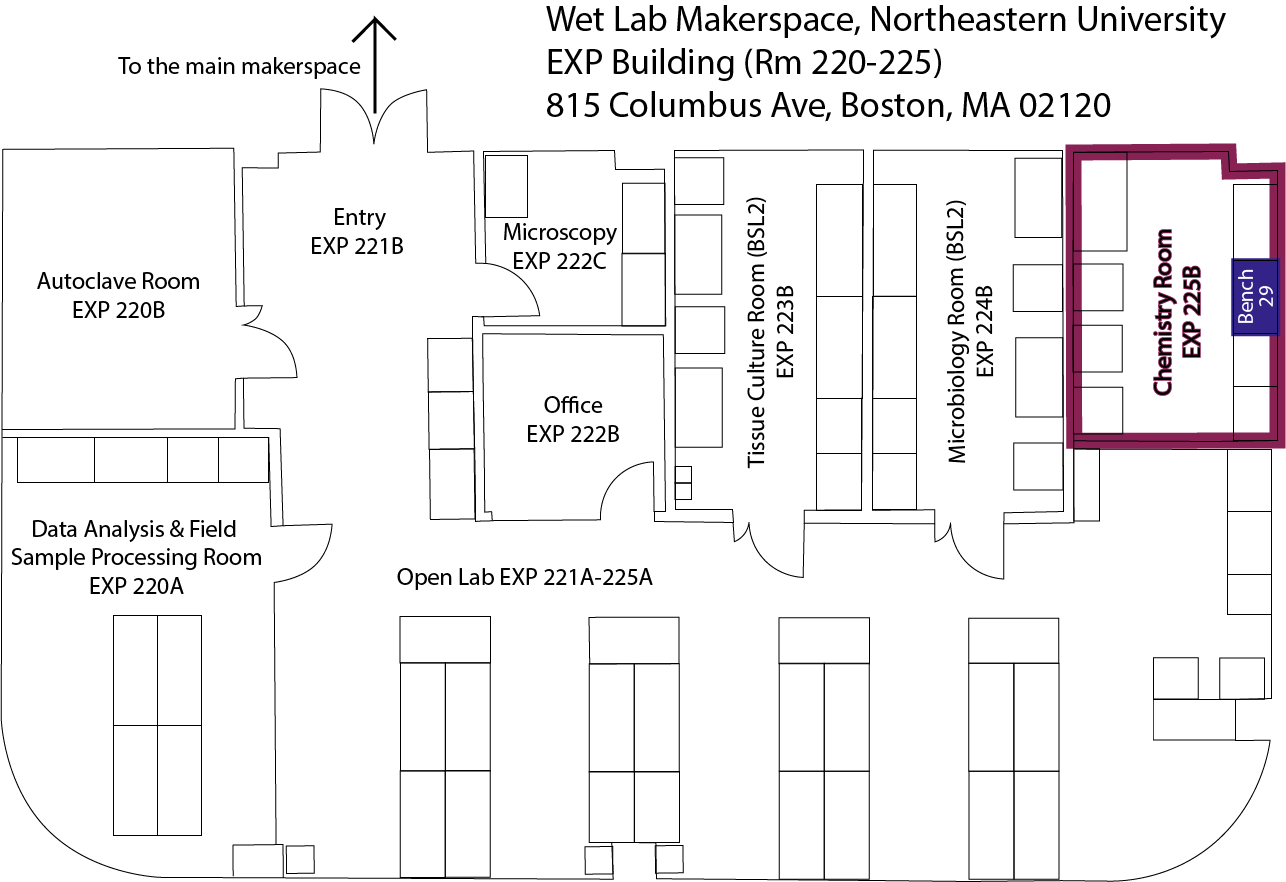
The QuantStudio 6 Pro is located in the Open Lab on Bench 29.
Parts
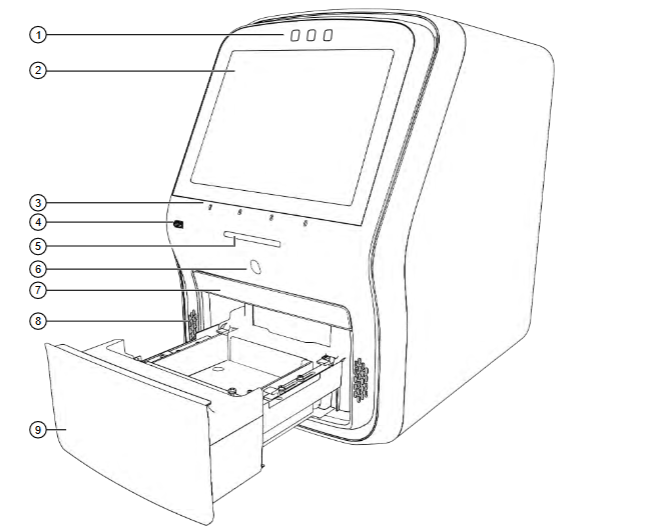
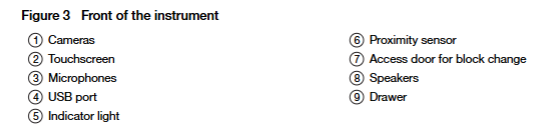
External & User Interface
Internal
Internally, the QuantStudio has four main components:
- Thermal cycling block: Functions very similarly to a standard PCR thermal cycler. It adjusts the temperature of your samples in cycles.
- Light source: A white LED used to excite fluorescent dyes.
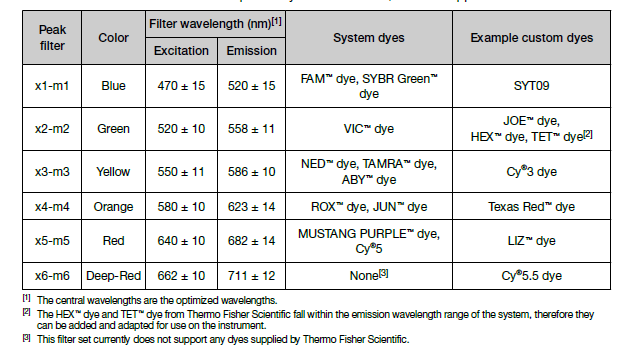
- Fluorescent filters: Filter for the appropriate excitation and emission wavelengths.
- Camera: Detects the fluorescent signal from each well.
Safety Considerations
Tips for Success
- Clean your workspace and equipment thoroughly:
- Clean the benchtop and pipettes you will use with 10% bleach, followed by water.
- Work on the bench next to the qPCR instrument — not on the bench with the thermal cyclers for standard PCR.
- Use an extraction method that will yield clean, high-integrity nucleic acids, and apply that method consistently across samples.
- Use filtered pipette tips.
- Use only the Optical Reaction plates (not other PCR plates), and be careful not to touch the bottom of the plate.
- Seal your plates thoroughly. Do not touch the top of the optical film.
- Do not write on your plate or film with marker.
- The glove on the vortex is there to prevent contamination of your sample with rubber — do not remove it.
- If you need to swap out the block to work in 384-well plate format, please consult with staff first.
Operating Instructions
File Prep
On the QuantStudio instrument, a plate file (extension .edt) gives the instrument information about what to do with your samples. It instructs the instrument in how many cycles to run, at what temperatures, and for how long. For a Ct relative measurement using SYBR Green chemistry, use the following template file:
QS7Pro-96-Well-0-2ml_RQ_Fast.edt
Sample Prep
1. Place the Optical Plate
Place an optical plate into the plate splash guard without touching the bottom or wells.
2. Load Reagents
Pipette your reagents into the appropriate wells according to your plate layout.
3. Seal the Plate with Optical Film
- Do not touch the top of the optical film.
- Do not write on the film or plate with marker.
- The film is not sticky — it is pressure-activated. Seal by pressing with the sealer up and down and across the plate in all directions. Press down around the outer edges, but do not press down between the wells.
Instrument Run
1. Sign Into the Instrument
If this is your first time using the instrument, first create an instrument profile and connect to your Thermo Connect account, if desired.
2. Open the Plate File
- On the home screen, tap Load plate file.
- Search for and tap your plate file.
- Edit the Data File name, if desired.
- Choose the location to send the data file.
3. Edit the Plate File (If Necessary)
In the Method tab, you can change the cover temperature, volume, temperature or time for any step, or the number of cycles.
4. Load the Plate
- Tap the Eject button to open the drawer.
- Load the plate into the block with A1 in the top-left corner.
- Tap the Eject button to close the drawer.
5. Start the Run
Tap Start Run.
6. Unload the Plate
- Tap the Eject button to open the drawer.
- Remove the plate from the block.
- Tap the Eject button to close the drawer.
Data
After your run completes, review the amplification plots (x-axis: cycle number; y-axis: fluorescence):
- Linear view — Check baseline linearity: is the beginning of the curve flat?
- Log view — Set the threshold (auto or manual) so that it falls within the exponential phase of amplification.
- Ct value — The cycle at which the amplification curve intersects the threshold line.
If you would like to analyze your data on your own computer, you can download the ThermoFisher Analysis Software here: QuantStudio 3/5 Real-Time PCR Software | Thermo Fisher Scientific.
Additional Information
()